Choose a task to view the current console and its workflow. Click an image to inspect the details.
Read-only interface walkthrough · Captured 7 November 2026 · No access to customer devices
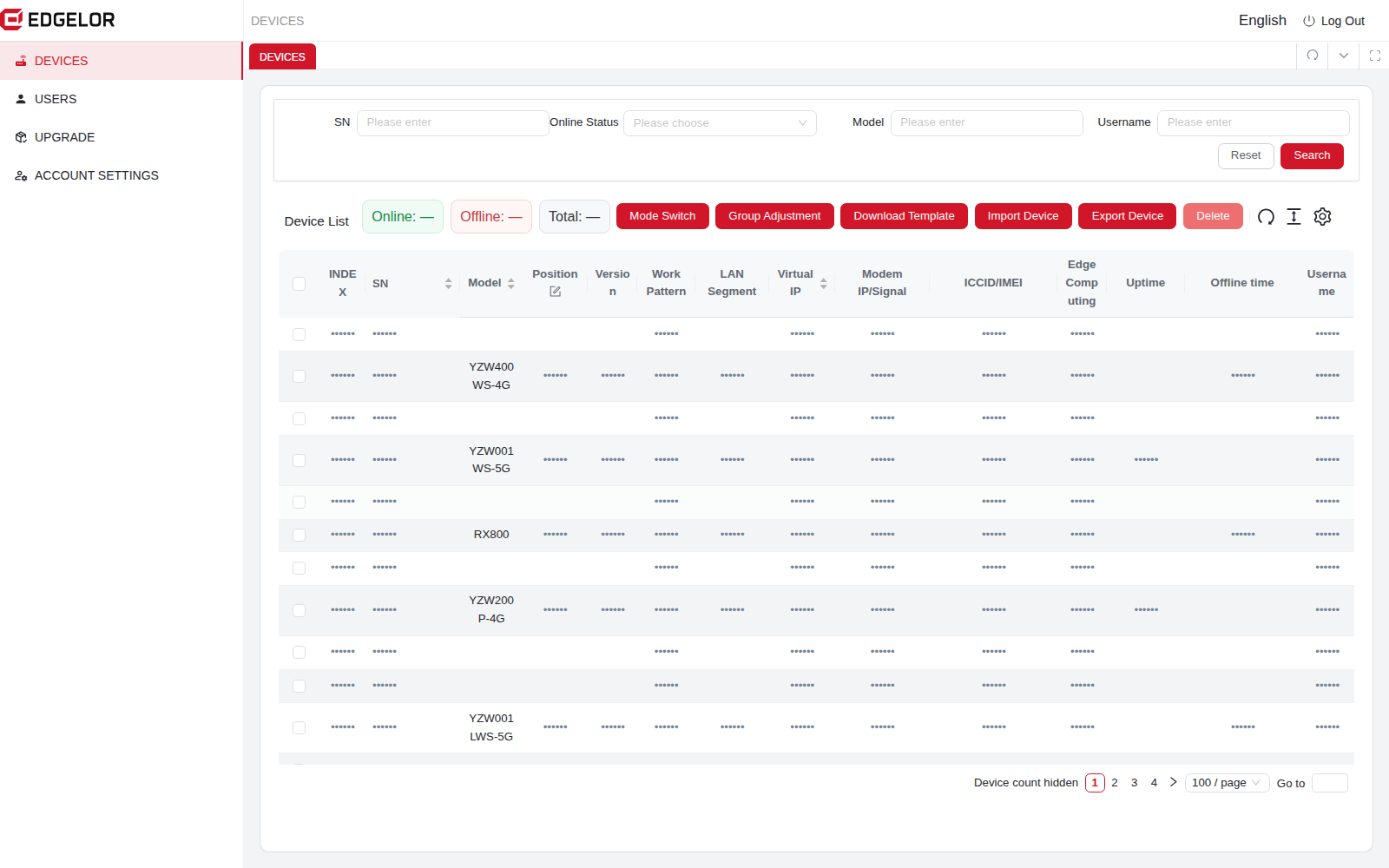
Online device statistics
Find the gateways that need attention.
Review online, offline and total counts, then locate a gateway by its serial number or account.
Open the device list.
Review status and the reported model and version.
Identify the site before starting remote maintenance.
Current console · Click to enlarge
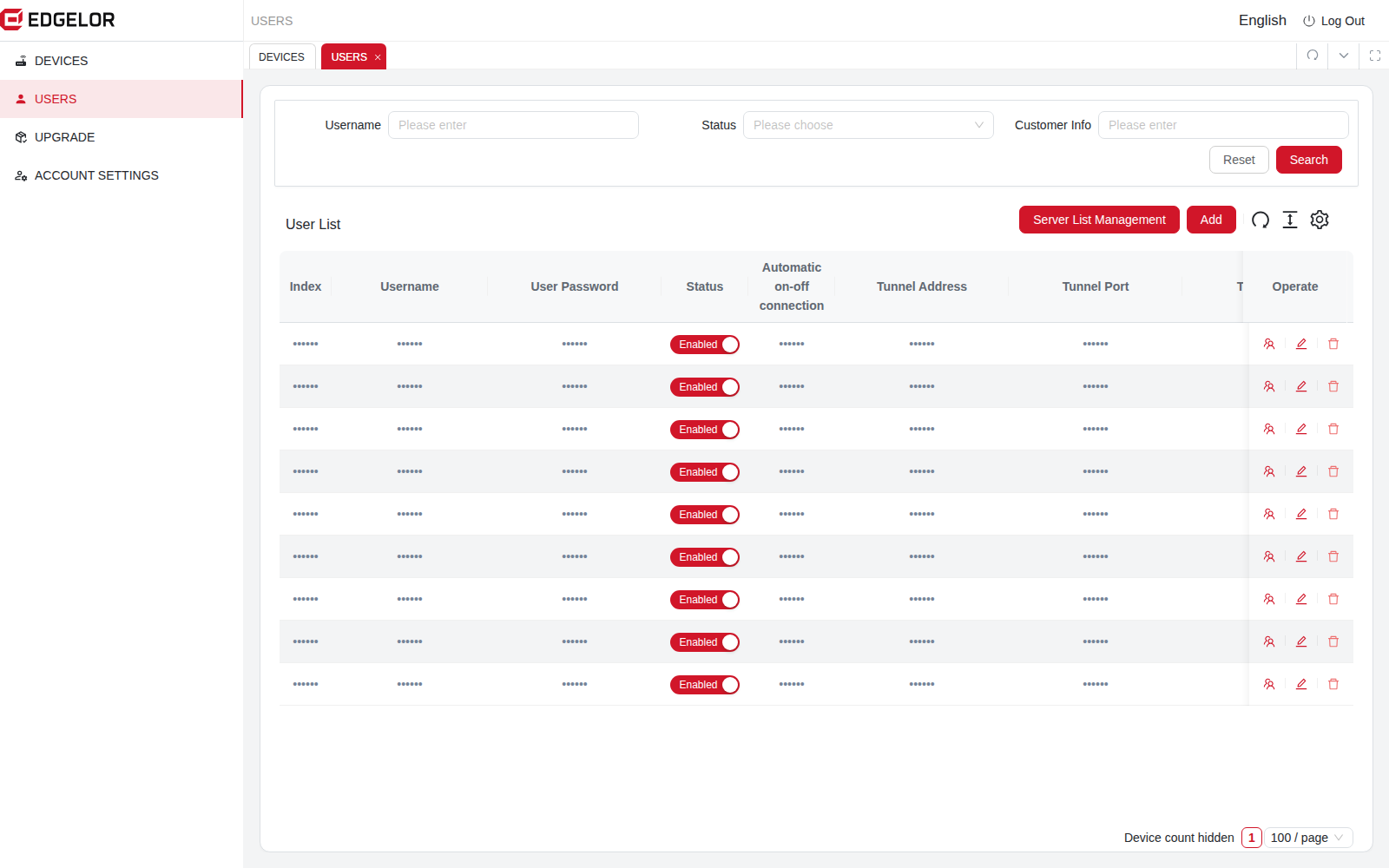
Users & subaccounts
Give each team the right account scope.
Manage users and their subaccounts within your permissions, so customer and service teams work with the appropriate devices.
Open user management.
Review the user and available subaccount controls.
Confirm account scope before assigning devices.
Current console · Click to enlarge
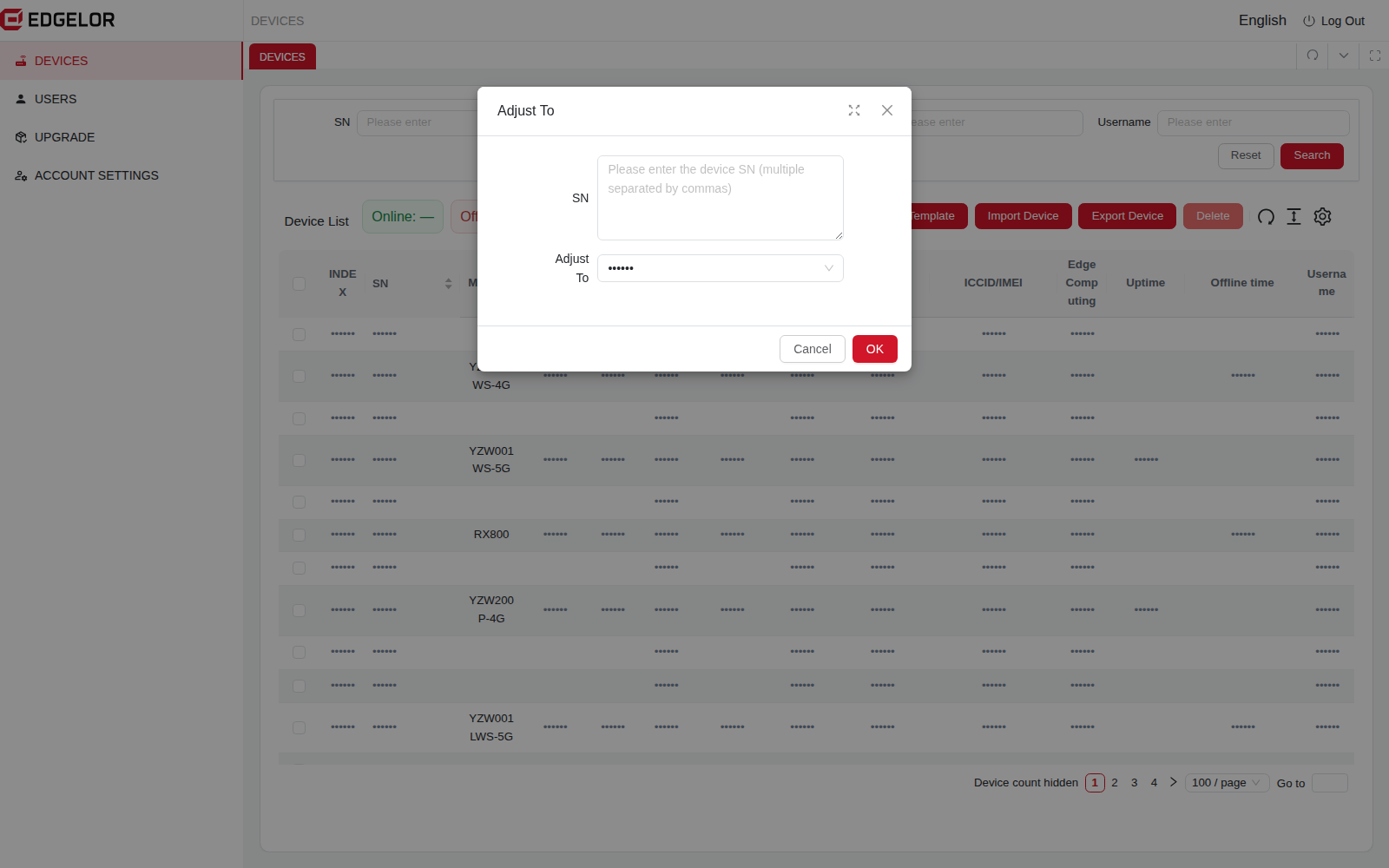
Device groups & ownership
Keep device ownership clear as projects grow.
Use the group adjustment dialog to assign specified device serial numbers to the permitted target account.
Identify the device serial numbers.
Choose the authorized target account.
Confirm the device assignment after the change.
Current console · Click to enlarge
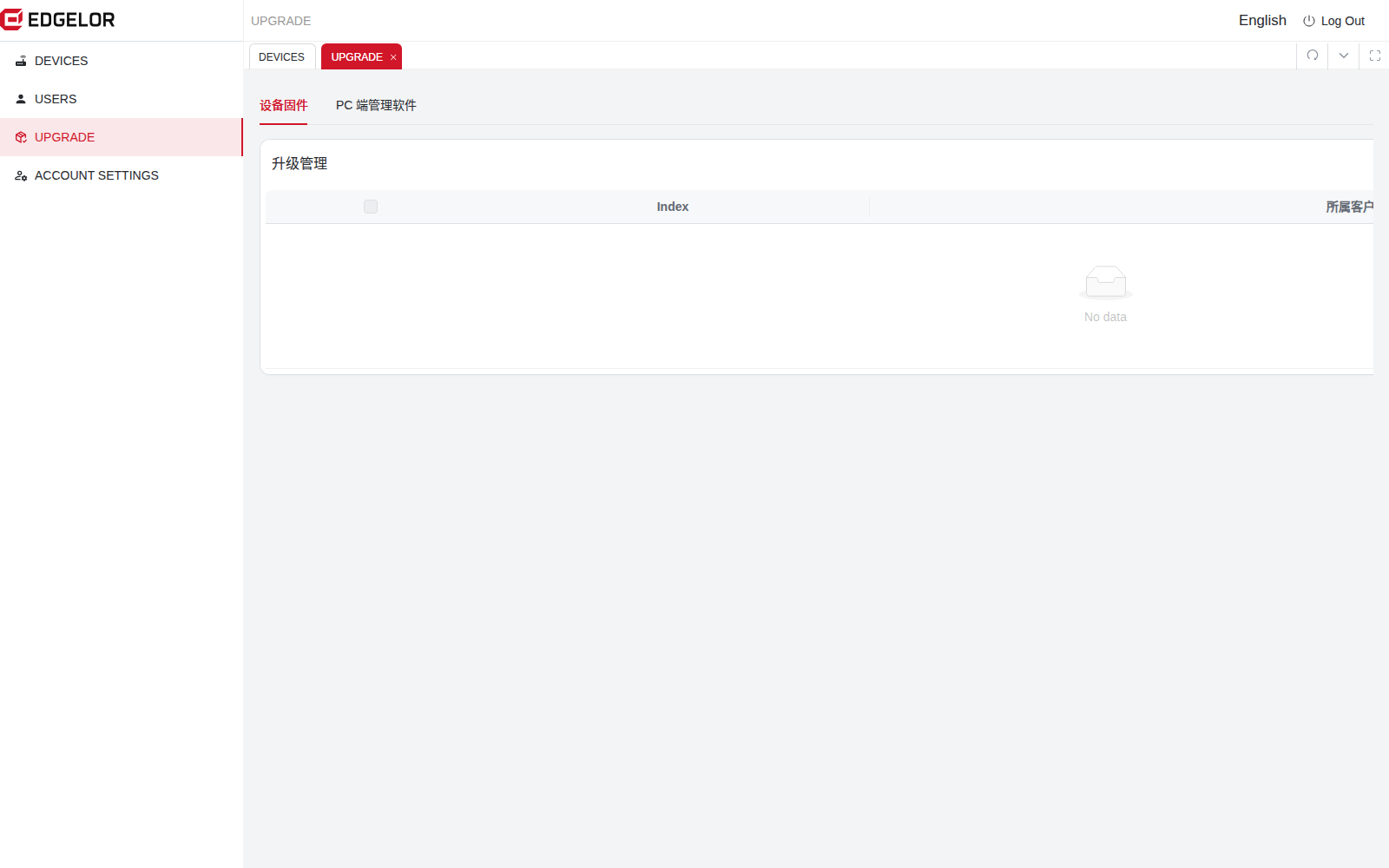
Firmware management
Keep the right firmware with the right hardware.
Manage firmware files, versions and publication state against the target platform, model, storage medium and compatibility family.
Check the target hardware and compatibility.
Manage the version and firmware file with an authorized account.
Review publication state before planning an update.
The captured account view has an empty firmware library. Available controls depend on account permissions; publication is separate from a completed device upgrade.
Current console · Click to enlarge
FROM ADMINISTRATION TO SITE WORK
Manage in the browser. Connect with the remote tool.
Give administrators a clear device inventory and engineers a defined path to the equipment.
Manage accounts, device assignments, online status and firmware versions in the web platform.
02
Connect from Windows
Use the separate M2M remote tool to establish the authorized route, adapter or serial access path.
03
Work with the equipment
Open the gateway Web UI or compatible vendor software and verify the actual device response.
BEFORE YOU CONNECT
A few practical questions.
Does online status mean the field equipment is reachable?
Online status confirms the gateway status reported to the platform. Tunnel readiness and the response of a PLC or other target service must be checked separately.
Can visitors change anything through this walkthrough?
This page displays approved screenshots only. Account changes, assignments and firmware operations require signing in to the actual platform with the appropriate permissions.
Can every gateway use the same firmware?
Select firmware for the exact platform, model, storage medium and compatibility family. Confirm the delivered firmware and update procedure for the target device.
START WITH YOUR APPLICATION
Tell us what needs to connect.
Share the model, interfaces, protocol documents and the result you need. We will review the implementation and acceptance scope with you.